
 Fusion templates for DaVinci Resolve
Animated polls and statistics for your videos.
A poll package for DaVinci Resolve with animated graphic templates, charts and interactive-style UI elements, designed for videos, commentary and data presentation. Add a template, type your data and press Play.
- Works in
- DaVinci Resolve, Edit and Fusion pages
- Templates
- 7 Poll, 12 Poll, Pie, Waffle, Line and Area
- Formats
- 16:9, 9:16 and 1:1, automatic
- Languages
- English and Arabic RTL
DaVinci
Resolve
WindowsmacOSLinux
Five templates, one workflow
The kit is a set of complete Fusion macros. You never open the node graph: every setting lives in the tabs of the control panel in the Inspector.
- Add a template
- Open the Inspector
- Enter names and values
- Pick colors and style
- Press Play
-
Rank or Normal mode
Rank Mode sorts rows by value, highest first, and glides them to their new places when values cross. Normal Mode keeps your typing order.
-
Elastic animation
None, Smooth, Elastic, Bounce or Back intros. Bars grow, numbers count up and the pie sweeps in clockwise.
-
16:9, 9:16 and 1:1
Every template reads the timeline resolution and re-balances itself for landscape, vertical and square. No manual re-layout.
-
Arabic and right-to-left
One switch mirrors the whole layout and offers Western or Arabic-Indic numerals for every number the kit generates.
-
Nothing extra to install
Five complete Fusion macros as .setting files. No third-party plugins, no scripts, no licence key.
-
Alexandria by default
A clean multilingual font with Latin and Arabic. Every control panel has a Download Alexandria Font button at the top.
-
Keyframe the results
Click the diamond next to any value and enter a new number later in the clip. Bars, shares and counts animate between keys.
-
Built to stay light
Unused polls, slices, categories, series and points switch off automatically and cost nothing to render.
One template, every format
Every template reads the timeline resolution and adapts to landscape, square and vertical: text scales to the format, the panel wraps tightly around the content, and charts re-balance their layout. Previews below are rendered from the templates’ own values.
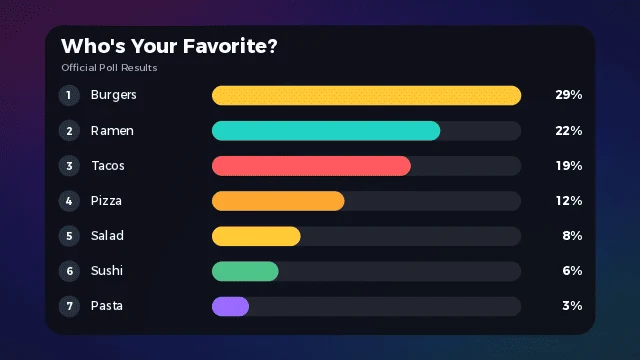
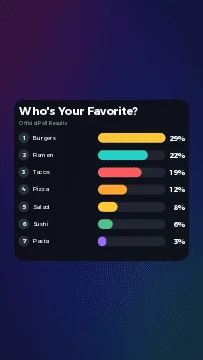
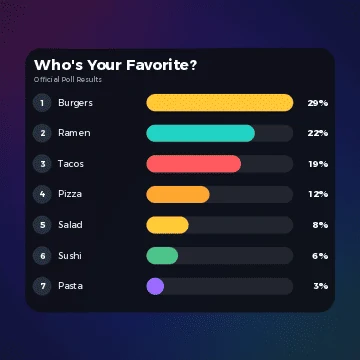
Formats and responsiveness
Use Overall Scale, Panel Width and Panel Height on the Layout tab only for fine-tuning. Waffle legends move below the grid in vertical and square, pie and line charts re-balance, and poll label columns widen.
Arabic and right-to-left
Layout Direction and Numerals are on every Layout tab. Right-to-Left mirrors the whole template, and numerals can be Western or Arabic-Indic. Type Arabic names directly into the text fields; the Alexandria font includes Arabic.
Find a setting
Search the settings of every template, or filter by template to see what each one offers.
- Layout DirectionLeft-to-right or right-to-left (Arabic); mirrors the whole template.
- NumeralsWestern (0-9) or Arabic-Indic digits and percent sign.
- Animation styleNone, Smooth, Elastic, Bounce or Back, with strength, delay and duration.
- Overall Scale, Panel Width, Panel HeightFine-tuning only; the layout already adapts to the timeline format.
- Number prefix and suffixAdd a symbol such as $ or k to the numbers.
- DecimalsHow many decimal places percentages and values show.
- Font and font stylesAlexandria by default; change it on the Style tab.
- Color Gamma CompensationConverts the kit colors for Resolve’s linear color handling (default 2.2).
- Rank Mode / Normal ModeAuto-sort by value, or keep the order you typed.
- Percentage or NumericalShow each value as a share of the visible total, or as the raw number.
- Poll name, value, color and VisibleUntick Visible and the remaining rows close the gap.
- Re-Rank GlideFrames rows take to glide to a new rank. 0 swaps instantly.
- Value placement and bar full valueWhere values sit, and the value that fills a bar.
- Bar thickness and roundnessLayout tab. Also column widths, badge size and alignment.
- Rank badges and leader highlightColors on the Style tab; hidden in Normal Mode.
- Sort slices largest-firstOptional ordering on the Kit tab.
- Label content and positionValue, name or both; inside, outside or automatic by slice size.
- Center captionText in the middle of the donut. The total appears there too.
- Donut Hole0 is a full pie; raise it above 0.2 for a donut with the total.
- Start angle and directionWhere the first slice begins, clockwise or counter-clockwise.
- Slice gap and explodeSeparate slices, explode all, or explode only the largest.
- Percentages Are Based OnSum of Values (adds to 100%) or Fixed Total (progress mode).
- Grid columns and rowsUp to 25 x 25 cells.
- Cell shape and spacingRounded square, square or circle, with roundness and spacing.
- Fill orderFour directions, including right-to-left in RTL.
- Legend and empty cellsAutomatic position: beside the grid in landscape, below it in vertical and square.
- Cell pop softnessHow cells pop in, category by category.
- Chart typeLine, Area or Line + Area.
- Number of PointsUp to 12 points; up to 3 series.
- Curve Smoothing0 gives straight segments, 1 a smooth curve.
- Value axis rangeAuto picks a clean step; Manual sets minimum, maximum and intervals.
- Number abbreviationShorten large values to k, M and B.
- Draw-On and RiseAnimate left to right, grow from the baseline, or both.
- Gridlines, markers and end labelsHorizontal and vertical gridlines, point markers and end value labels.
No setting matches your search.
A tidy control panel
Every page has the kit header and the Alexandria button at the top, and a footer with two buttons: DONATE HERE! and 1LineArt YOUTUBE. In between, each template groups its settings into tabs.
7 Poll and 12 Poll
| Tab | What it holds |
|---|---|
| Kit | Title and subtitle, show/hide switches, Rank Mode or Normal Mode, Percentage or Numerical display, decimals, number prefix and suffix, value placement, bar full value. |
| Poll Data | Name, value, visibility and color for every poll. |
| Style | Colors for panel, tracks, titles, labels, values, rank badges and the leader highlight; text sizes; font and font styles. |
| Layout | Position, scale, panel size, header height, bar thickness and roundness, column widths, badge size, label and title alignment. |
| Animation | Style (None, Smooth, Elastic, Bounce, Back), strength, intro delay and duration, row stagger, re-rank glide. |
| About | Package description and support links. |
Up to 12 slices
| Tab | What it holds |
|---|---|
| Kit | Title, subtitle, sort slices largest-first, label content (value, name or both), label position, decimals, number prefix and suffix, center caption. |
| Slice Data | Name, value, visibility and color for each slice. |
| Layout | Pie size, donut hole, start angle, direction, slice gap, explode all or largest, outside label distance. |
| Style and Animation | Colors, text sizes and the same intro styles as the polls. The pie sweeps in clockwise. |
Up to 8 categories
| Tab | What it holds |
|---|---|
| Kit | Title, subtitle, legend, empty cells, sort largest-first, percentage or numerical display, prefix and suffix, decimals, Percentages Are Based On. |
| Categories | Name, value, visibility and color per category. |
| Layout | Grid columns and rows, cell shape, roundness, cell spacing, fill order, grid size and legend position. |
| Animation | Style, strength, delay, duration and cell pop softness. Cells pop in category by category. |
Up to 3 series, 12 points
| Tab | What it holds |
|---|---|
| Kit | Chart type, number of points, smoothing, gridlines, value and category labels, markers, end value labels, number abbreviation, value axis range. |
| Series | Name, visibility and color per series. |
| Data | A label and one value per series for each point. |
| Style and Layout | Colors, area opacity, line thickness, marker size, text sizes, panel and plot height ratio. |
| Animation | Draw-On, Rise or both, with a choice of easing and a per-point stagger. |
Install in a minute
Copy the .setting files into the folder for your system and restart DaVinci Resolve. No third-party plugins are needed.
-
Open the Macros folder of the package and copy all five .setting files.
-
Paste them into the Edit page titles folder (recommended; they appear under Effects > Titles). Create any folder that does not exist yet.%APPDATA%\Blackmagic Design\DaVinci Resolve\Support\Fusion\Templates\Edit\Titles\
-
Optional: also paste them into the Fusion macros folder (they appear under Add Tool > Macros on the Fusion page).%APPDATA%\Blackmagic Design\DaVinci Resolve\Support\Fusion\Macros\
-
Restart DaVinci Resolve.
-
Open the Macros folder of the package and copy all five .setting files.
-
Paste them into the Edit page titles folder (recommended; they appear under Effects > Titles). Create any folder that does not exist yet.~/Library/Application Support/Blackmagic Design/DaVinci Resolve/Fusion/Templates/Edit/Titles/
-
Optional: also paste them into the Fusion macros folder (they appear under Add Tool > Macros on the Fusion page).~/Library/Application Support/Blackmagic Design/DaVinci Resolve/Fusion/Macros/
-
Restart DaVinci Resolve.
-
Open the Macros folder of the package and copy all five .setting files.
-
Paste them into the Edit page titles folder (recommended; they appear under Effects > Titles). Create any folder that does not exist yet.~/.local/share/DaVinciResolve/Fusion/Templates/Edit/Titles/
-
Optional: also paste them into the Fusion macros folder (they appear under Add Tool > Macros on the Fusion page).~/.local/share/DaVinciResolve/Fusion/Macros/
-
Restart DaVinci Resolve.
Tip: to place a thumbnail next to a template, copy its PNG from the Thumbnails folder into the same folder as the .setting file.
Install the default font (Alexandria)
The kit is designed around the Alexandria font. If it is missing, Fusion substitutes another font until it is installed.
-
Click Download Alexandria Font in the kit, or use the button below.
-
Install the font: double-click the file and choose Install on macOS or Windows; copy it to
~/.local/share/fontson Linux. -
Restart DaVinci Resolve so the font appears in the font list.
What is in the package
| Item | Purpose |
|---|---|
| Macros | 7 Poll, 12 Poll, Pie Chart, Waffle Chart and Line and Area Chart: complete Fusion macros (.setting). |
| Thumbnails | One preview image per layout, a donut example, and a 16:9 / 9:16 / 1:1 format sheet. |
| Preview | A short motion preview that shows the look and the animation behaviour. |
| Assets | The poll icon set (PNG) for use in your own edits. |
| Installation Guide | The full installation and usage guide. |
System requirements
- DaVinci Resolve on Windows, macOS or Linux, with a version that includes Fusion’s Custom Tool. The Pie, Waffle and Line charts use it for their shapes.
- No third-party plugins are needed.
- The Alexandria font, for the intended look (optional; Fusion substitutes another font without it).
- Any timeline resolution: the kit adapts to landscape, square and vertical automatically.
Verify and uninstall
On the Edit page, open Effects > Titles and look for 1LineArt Poll & Statistics Kit. If you also copied the macros, look under Add Tool > Macros on the Fusion page.
To uninstall, delete the .setting files from the folders you copied them to, then restart Resolve.
Quick start and workflow
Drag a template onto a video track, enter your data in the Inspector and press Play.
Edit page
-
Open Effects > Titles, find 1LineArt Poll & Statistics Kit and drag the template you want (7 Poll, 12 Poll, Pie, Waffle or Line and Area) onto a video track above your footage.
-
Select the clip and open the Inspector. All settings live in the tabs of the control panel.
-
On the Poll Data tab, type each name, enter each value and pick each color. Untick Visible to hide a poll; the remaining rows close the gap.
-
Press Play. The bars grow in with the elastic intro, the numbers count up, and rows glide into rank order.
Fusion page
-
Copy the .setting files to the Fusion macros folder as described in the Install section.
-
Open the Fusion page and choose Add Tool > Macros.
-
Pick the template, then set its data in the same tabs as on the Edit page.
Animating results
- Intro: bars, percentages and numbers animate in automatically using the style on the Animation tab.
- Changing results: move the playhead, click the keyframe diamond next to a “Poll Value” and enter a new number later in the clip. Bars, percentages and numbers animate between the keyframes.
- Auto-sort: with Rank Mode on, rows re-order by value, highest first. When two values cross, the rows glide to their new positions over the “Re-Rank Glide” number of frames. Set it to 0 for instant swaps.
- Normal Mode: untick Rank Mode to keep the rows in the order you typed them. Rank badges and the leader highlight are hidden.
- Percentage vs Numerical: Percentage shows each value as a share of the visible total. Numerical shows the raw number, with an optional prefix or suffix such as $ or k.
Tip: for the lightest Line chart, reduce Number of Points to what you need and hide unused series.
Pie, Waffle and Line charts
- Pie: up to 12 slices. Slice angles are value ÷ total × 360°, so proportions are exact and the displayed percentages always add up to 100%. Raise Donut Hole above 0.2 and the total appears in the center.
- Waffle: up to 8 categories on grids up to 25 x 25. Fixed Total turns it into a progress display: one value of 72 out of 100 leaves 28% as “Remaining”.
- Line and Area: up to 3 series and 12 points. Curve Smoothing blends between straight segments (0) and a smooth curve (1).
Help and troubleshooting
Quick answers to the most common problems.
Confirm the .setting file is in the right folder (see the Install section) and restart DaVinci Resolve. Create any folder that does not exist yet.
Install Alexandria from the Google Fonts page and restart Resolve. Until then, Fusion substitutes another font.
Open Layout > Shape Units (Compatibility) and try “Width-relative” or “Height-relative”. This only changes how Fusion interprets mask sizes on your version.
Style > Color Gamma Compensation converts the kit’s colors for Resolve’s linear color handling (default 2.2). Set it to 1.0 if your project already treats colors as display values.
Shorten the name, raise Layout > Label Column Width, or lower Style > Label Size.
Set Number of Points or slices to the minimum you need, hide unused series, and let the first frame finish rendering before scrubbing. Each enabled slice, segment and category costs a full-frame render. If it persists, send the first red line of the Console to support.
Open Fusion > Console, note the first red line (it names the tool, for example LabelTxt01) and send it to support. The charts use Fusion’s Custom Tool, which needs a Resolve version that includes it.
Set Number of Points to what you need and hide unused series, polls, slices and categories; they cost nothing once off. The Pie, Waffle and Line charts draw each shape into a small image and all image tools work in half-float depth, so each frame processes far fewer pixels.
Values are rounded individually. Use Decimals = 1 for exact-looking totals.
The buttons open your default web browser. Check that a default browser is set and that your system allows links to open. The addresses are 1lineart.com/donate.html and youtube.com/@1LineArt.

Support 1LineArt
If this kit saves you time, please consider supporting 1LineArt. A donation keeps new templates coming, and subscribing to the channel helps too.