سكريبت فيوجن لبرنامج DaVinci Resolve
تمديد الحروف وكتابة آلية للنصوص العربية
 Qalam FX is a Python Lua Fusion script for DaVinci Resolve that brings two native Arabic
motion tools to your titles: a Kashida Stretch effect that elongates real tatweel
joins, and a Typewriter reveal/erase with an authentic Arabic cursor. By 1LineArt Studio.
01 · See it in Fusion
Watch Qalam FX animate a title, live
A demo video showcasing both effects running in the Fusion page: Kashida Stretch widening a word’s tatweel joins, followed by a Typewriter reveal using the Tatweel cursor.
02 · Inside the panel
One script, two animation tools
Kashida Stretch and Typewriter live in the same floating panel as separate tabs, each with its own controls, presets, and Kashida In / Kashida Out (or Type In / Type Out) triggers.
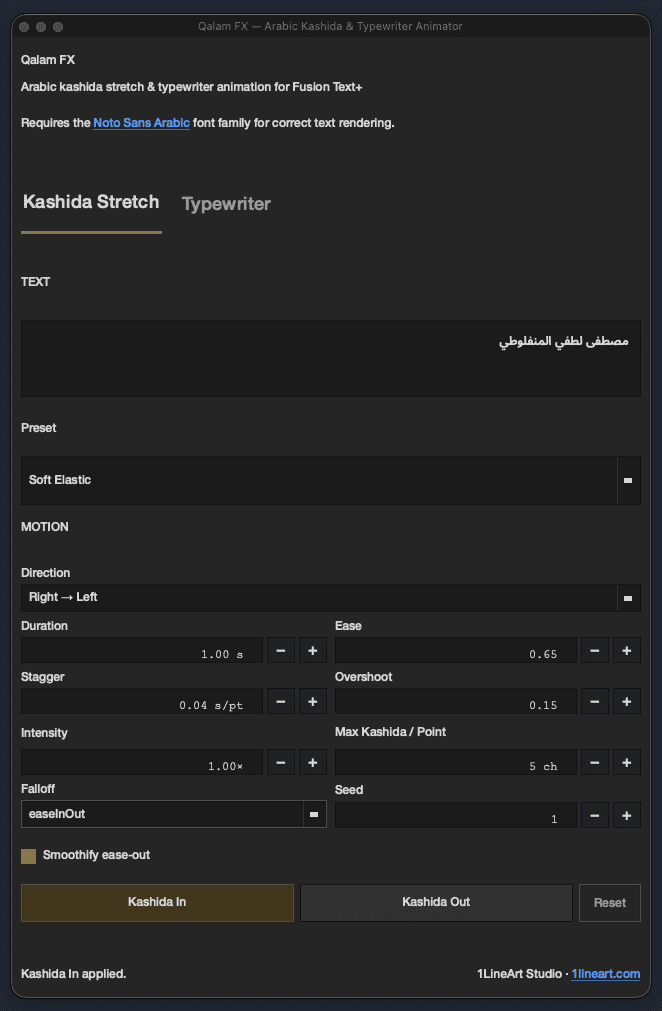

KashidaDynamicText node writes the animated tatweel directly into a Text+ tool.
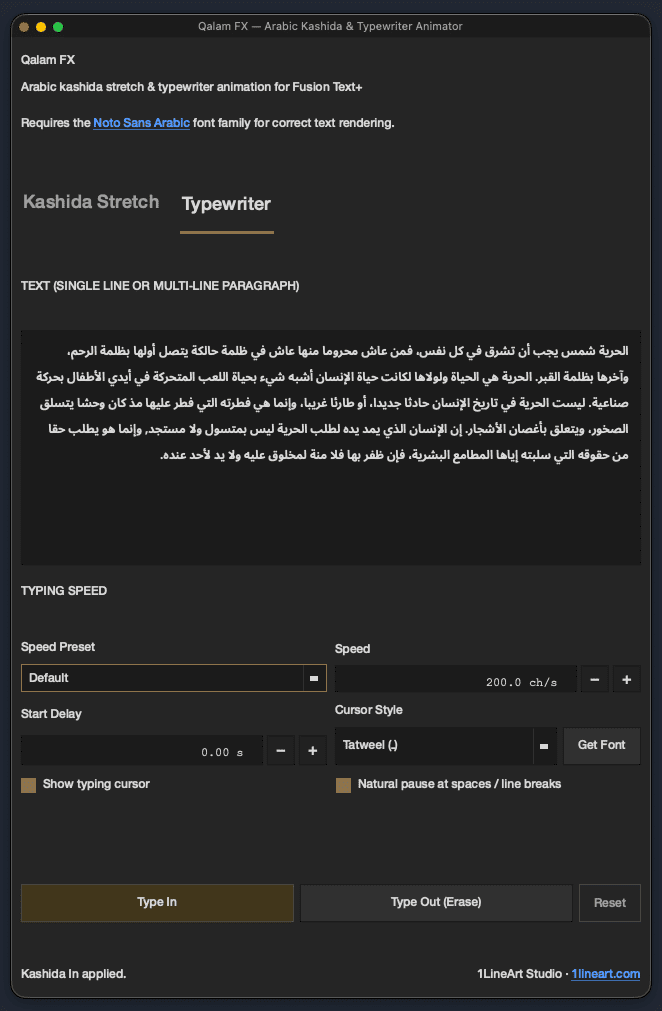

QalamTypewriterText reveals a full paragraph, right-anchored, mid type-in.
The two tabs build separate Text+ nodes — KashidaDynamicText and
QalamTypewriterText — so the effects never overwrite each other. Use either one alone,
or merge both into the same comp for a title that stretches in, then continues as a typed line.
03 · What's inside
Built on real Arabic scribal typography
Every kashida Qalam FX inserts follows traditional joining rules — never through a connecting stroke on a non-joining letter, never inside a Lam-Alef ligature.
Kashida Stretch, 7 motion presets
Soft Elastic, Strong Elastic, Smooth Stretch, Rubber / Spring, Fast Snap, Cinematic and Subtle Reveal — or fine-tune duration, ease, stagger, overshoot, falloff and max kashida per point (up to 50) by hand.
Typewriter reveal & erase
Type In or Type Out any single-line or multi-line paragraph, with a speed preset (Slow to Very Fast) or an exact characters-per-second value up to 500 ch/s, plus an optional start delay.
Authentic Arabic cursor
Choose the Tatweel (ـ) or isolated Alef (ﺍ) glyph as the typing cursor. Both effects render entirely in Noto Sans Arabic — cursor included — with no separate font control to manage.
Right-to-left, always correct
Every node defaults to a right-anchored, fully-justified text box automatically — there's no alignment control to set. Kashida Stretch still gives you six directions for how the stretch itself animates (Left→Right, Right→Left, Center→Out, Out→Center, Both Sides→Center, Random/Organic), and natural pauses land at spaces and line breaks instead of mid-word.
Independent Text+ nodes
Kashida Stretch and Typewriter each own a dedicated node (KashidaDynamicText /
QalamTypewriterText), so both can sit in one comp without conflicting.
Global In / Out control
A single Global In/Out range keyframes the whole animation on the tool, so it trims and retimes like any other Fusion effect.
04 · Presets at a glance
Motion & speed presets
Every preset is a starting point — all values remain editable after applying, with max kashida per point adjustable up to 50 and typewriter speed up to 500 ch/s regardless of preset.
Kashida Stretch presets
| Preset | Duration | Ease | Overshoot | Stagger | Falloff | Max kashida / pt |
|---|---|---|---|---|---|---|
| Soft Elastic | 1.0s | 0.65 | 0.15 | 0.04 | linear | 3 |
| Strong Elastic | 1.2s | 0.85 | 0.35 | 0.05 | linear | 5 |
| Smooth Stretch | 0.8s | 0.50 | 0.00 | 0.02 | linear | 4 |
| Rubber / Spring | 1.4s | 0.90 | 0.45 | 0.06 | easeOut | 5 |
| Fast Snap | 0.35s | 0.30 | 0.05 | 0.01 | linear | 2 |
| Cinematic | 2.0s | 0.70 | 0.10 | 0.08 | easeInOut | 5 |
| Subtle Reveal | 1.0s | 0.40 | 0.00 | 0.05 | easeIn | 2 |
Typewriter speed presets
| Preset | Speed |
|---|---|
| Slow | 6 ch/s |
| Normal | 12 ch/s |
| Fast | 20 ch/s |
| Very Fast | 32 ch/s |
| Default | 200 ch/s |
| Custom | any exact value, up to 500 ch/s |
05 · Installation
Set up in under two minutes
Qalam FX is a single Lua script with an optional one-click installer for each OS — no external dependencies.
-
Run the installer for your OS
Keep the installer in the same folder as
QalamFX.lua— it copies that file into Fusion's Comp Scripts folder for you.WindowsDouble-click install_windows.batmacOS./install_macos.sh (Terminal) Linux./install_linux.sh (Terminal) On macOS/Linux you may need to make the script executable first:
chmod +x install_macos.sh(orinstall_linux.sh), then run it.Prefer to skip the installer? Drop
QalamFX.luainto the folder for your OS yourself:Windows%APPDATA%\Blackmagic Design\ DaVinci Resolve\ Fusion\ Scripts\ Comp\ macOS~/Library/ Application Support/ Blackmagic Design/ DaVinci Resolve/ Fusion/ Scripts/ Comp/ Linux~/.local/ share/ DaVinciResolve/ Fusion/ Scripts/ Comp/ -
Install Noto Sans Arabic
Get the font from Google Fonts so the body text and the Tatweel/Alef cursor render correctly everywhere the script writes text.
↓ Download Noto Sans Arabic -
Open the script from the Fusion page
With a composition open on the Fusion page, run
Workspace > Scripts > Comp > QalamFX. The floating panel opens with the Kashida Stretch and Typewriter tabs ready to use. -
Type, pick a preset, animate
Kashida tab: paste Arabic text, pick a motion preset, click Kashida In or Kashida Out.
Typewriter tab: paste text, pick a speed and a cursor style (Tatweel or Alef), click Type In or Type Out.
06 · Usage
Working with each tab
Both tools follow the same rhythm: write the text, shape the motion, trigger it.
- Type or paste Arabic text into the Text field — single line or full paragraph.
- Pick a Preset for an instant look, or fine-tune Duration, Ease, Stagger, Overshoot and Falloff yourself for a custom feel.
- Set Max kashida / point (up to 50) to cap how many tatweel characters can stack at any one join, and Seed to vary the distribution between takes.
- Click Kashida In to animate the stretch on, or Kashida Out to animate it off. Reset removes the animation and leaves plain, unstretched text.
- Type or paste single-line or multi-line Arabic text into the Text field.
- Choose a Speed preset (Slow, Normal, Fast, Very Fast, Default) or set an exact characters-per-second value up to 500 ch/s; add a Start delay if the title needs to wait.
- Pick a Cursor style — Tatweel (ـ) or Alef (ﺍ) — and toggle Show typing cursor and Natural pause at spaces / line breaks.
- Click Type In to reveal the text, or Type Out to erase it. Reset clears the animation.
07 · Questions
Frequently asked
No third-party plugins — Qalam FX is a single Python Lua script that runs from
Workspace > Scripts > Comp. The only extra install is the Noto Sans Arabic
font, so the cursor glyphs and body text render consistently.
Yes. Each tab builds its own Text+ node (KashidaDynamicText and
QalamTypewriterText), so they can both live in the same comp — for example, a word
that stretches in with kashida, followed by a typed subtitle line.
Yes — kashida is only inserted at genuine connecting joins. The script skips non-connecting letters and avoids breaking a Lam-Alef ligature, so the stretched text stays readable and correctly shaped.
No, Qalam FX is a paid script developed by 1LineArt Studio. Visit 1LineArt.com for the latest download and release notes.
Bring kashida motion into your next Arabic title
Drop the script into your Comp Scripts folder and it's ready the next time you open Fusion.